Run Your First Task
Now that you’ve created a Task Definition, it’s time to see your agent in action by running a task.
A Task is a specific instance of work that an agent performs based on a Tasks Definition. It can include inputs, triggers, and automated steps, allowing your agent to execute workflows reliably. Think of it as putting your Task Definition into motion.
For a more detailed overview of tasks, see the Tasks Guide.
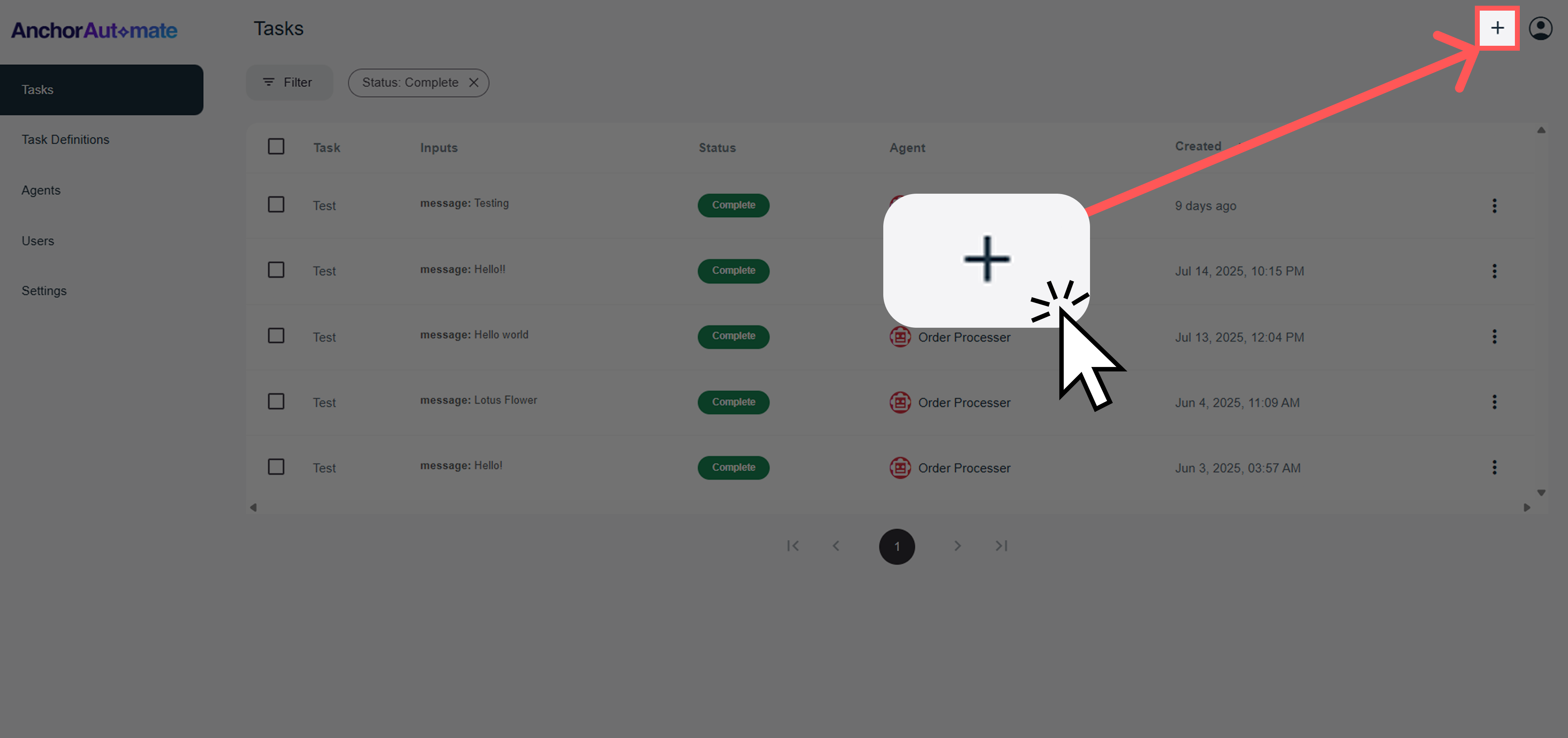
Step 1: Click the "+" Button
From the main dashboard, navigate to the upper-right corner and click the + icon to create a new task.s
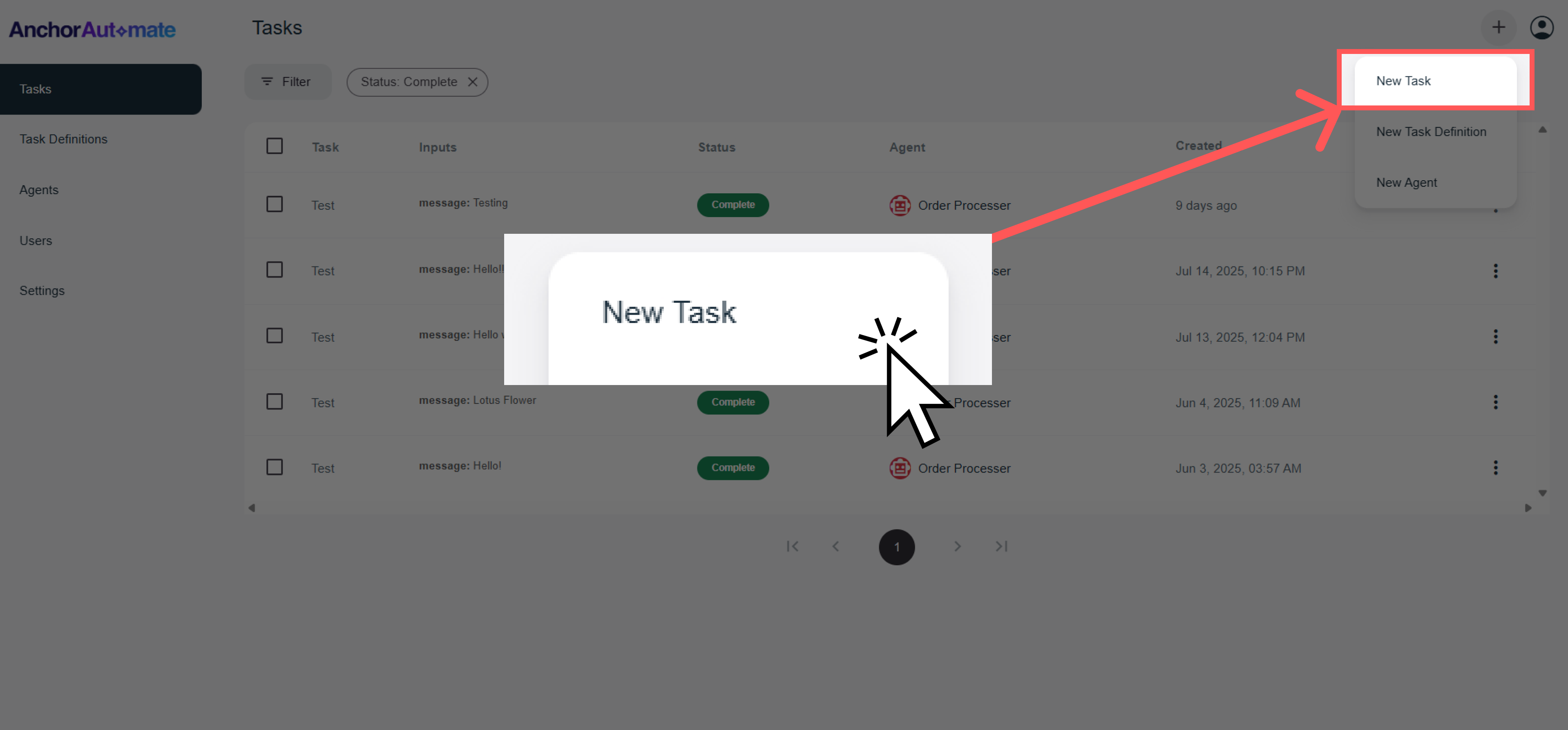
Step 2: Select "New Task"
A dropdown will appear after clicking the + icon. Select "New Task" from the list to start creating your task.
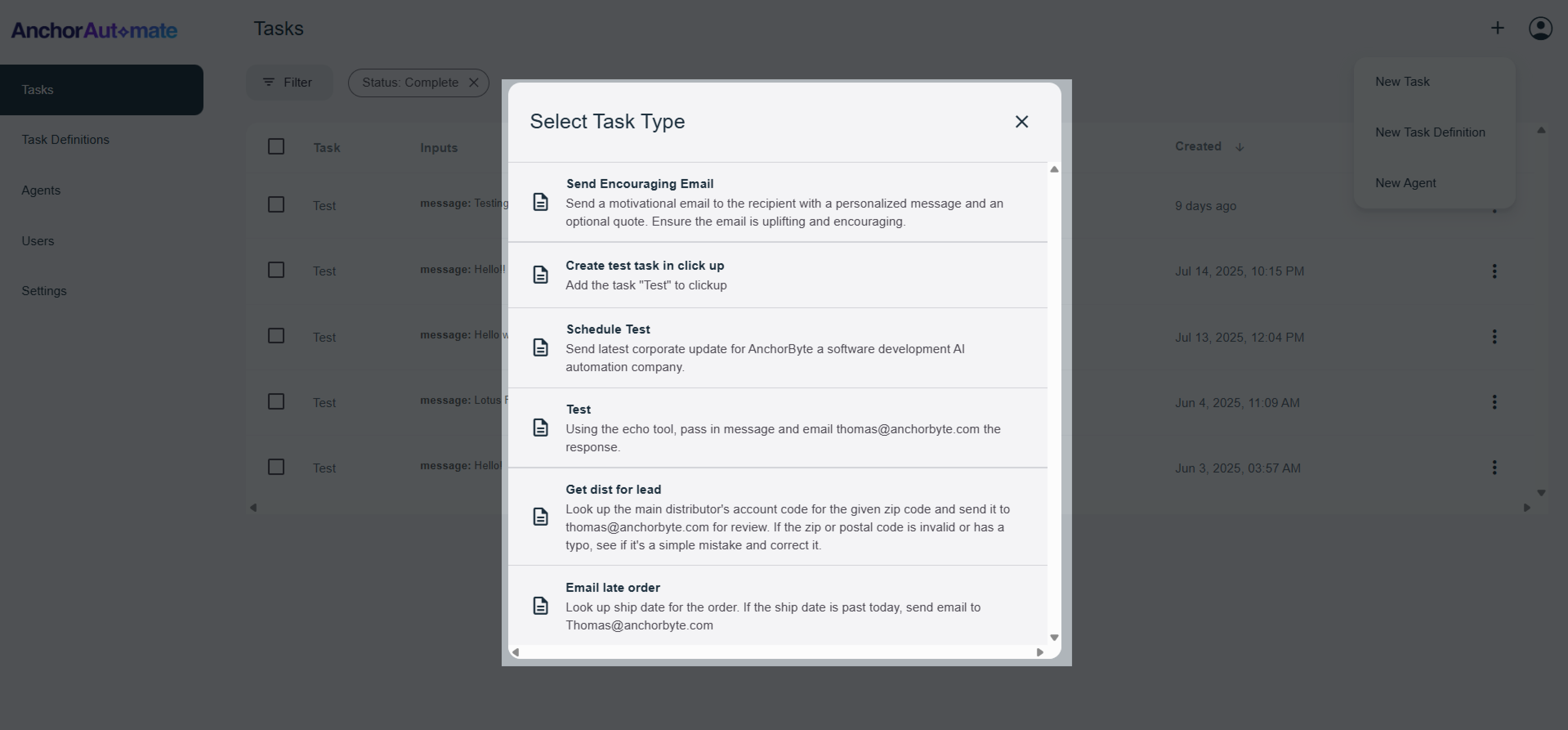
Step 3: Choose Your Task Definition
From the list, select the Task Definition you want your agent to run. This tells the agent exactly what workflow to execute.
Step 4: Fill in Required Inputs
If your task has input parameters, fill them in now. These inputs help the agent customize the task for your specific needs.
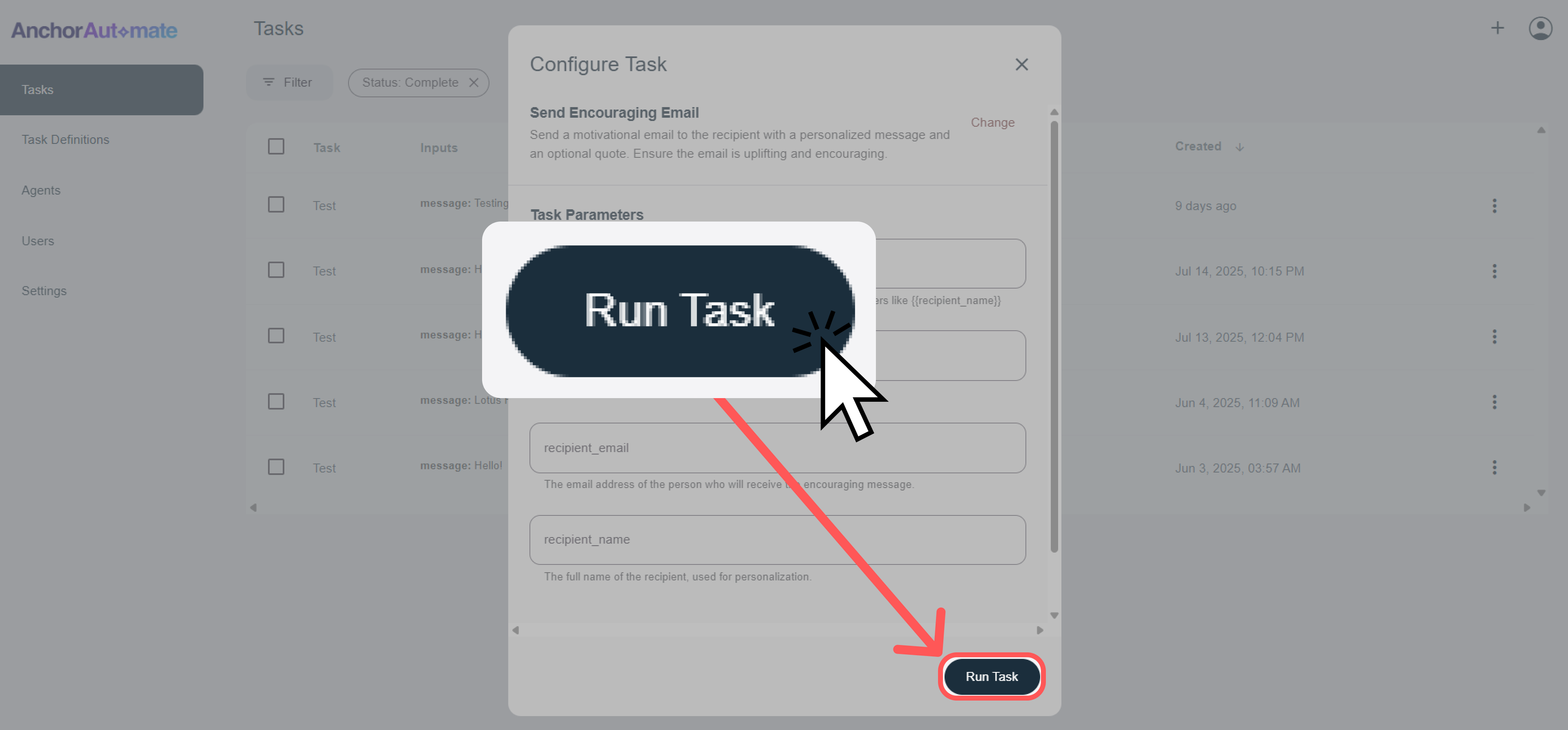
The fields you see here will differ depending on what was defined in your Task Definition, but the same concept applies — fill in the required inputs so the task can run correctly.
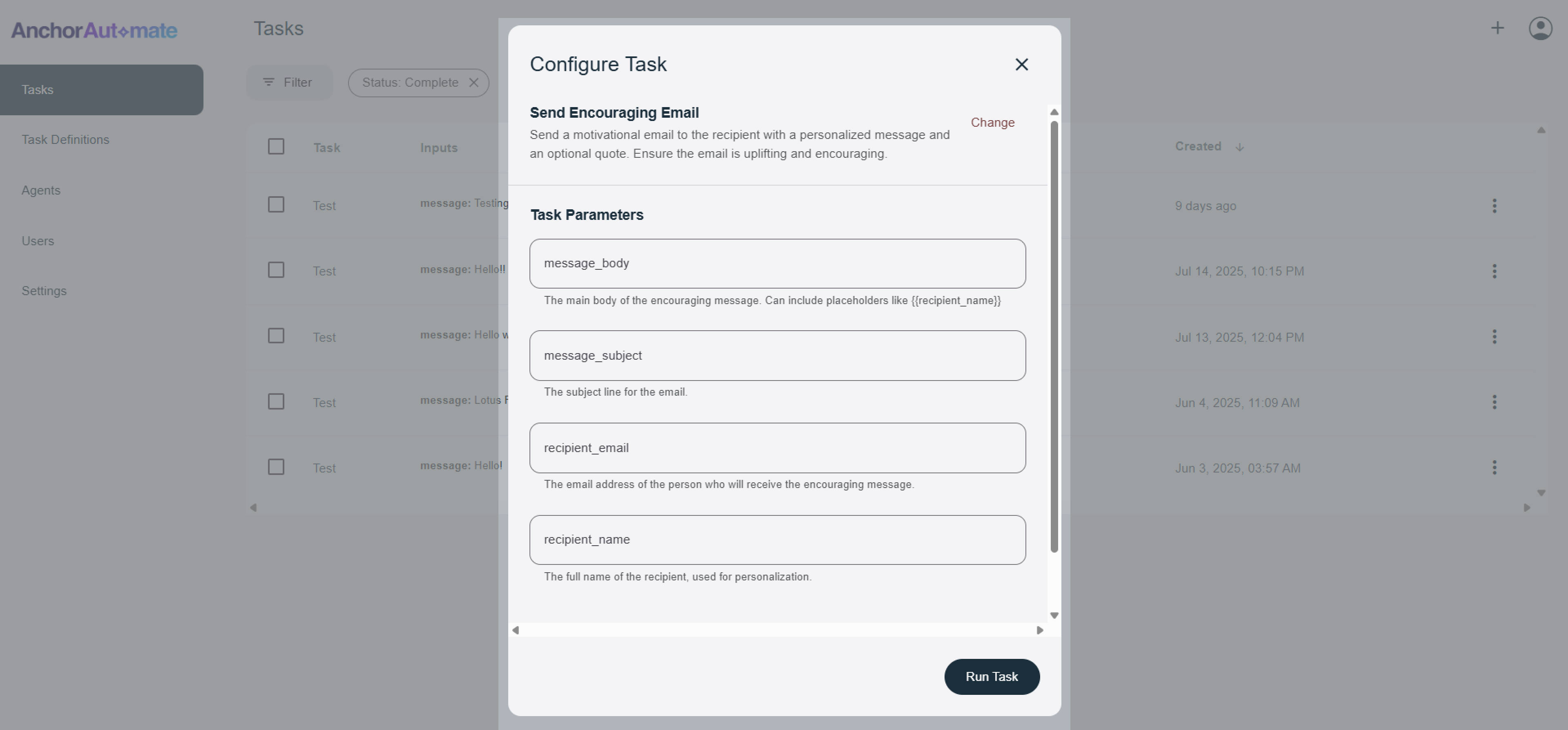
Step 5: Run the Task
Click "Run Task" to execute your workflow. Your agent will now perform the steps defined in your Task Definition, and you can monitor its progress in the Tasks section.
🎉 Congratulations! You’ve successfully run your first task.
What's Next?
Congratulations! You've successfully created and run your first automation. Here are some next steps:
- Explore the Agent Overview to learn more about agent capabilities
- Learn about Task Definitions to create more complex workflows
- Browse the App Marketplace to connect more applications
- Set up Human-in-the-Loop controls for sensitive operations
Need Help?
- Visit our community forum at community.anchorautomate.com
- Contact support through the help widget in your dashboard
