Controlling Apps
This feature is currently in development and will be available in a future release. The information below describes the planned functionality.
The Controlling Apps feature allows you to manage how apps perform actions within each task definition. This gives you detailed control over app permissions and ensures that your agents operate safely and efficiently.
App controls let you define what actions an app can perform, when it can perform them, and under what conditions human intervention is required. This is essential for maintaining security, preventing unintended actions, and improving overall trust in your AI system.
Accessing App Controls
To configure app permissions, follow these steps:
-
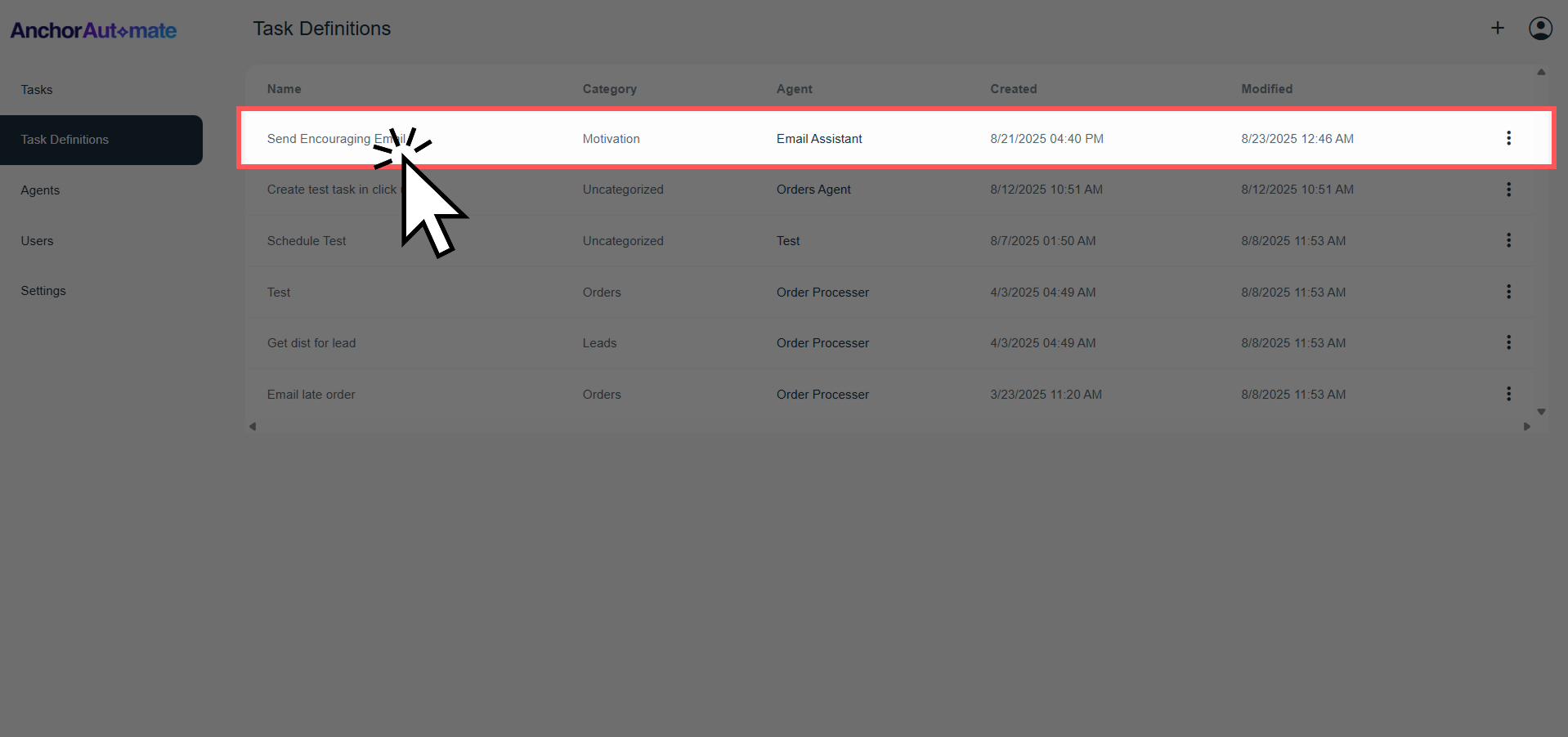
Select the Task Definition
Click on the task definition you want to edit.
-
Locate the Apps Permission Section
Scroll down or navigate to the Apps Permission section in the task definition page.
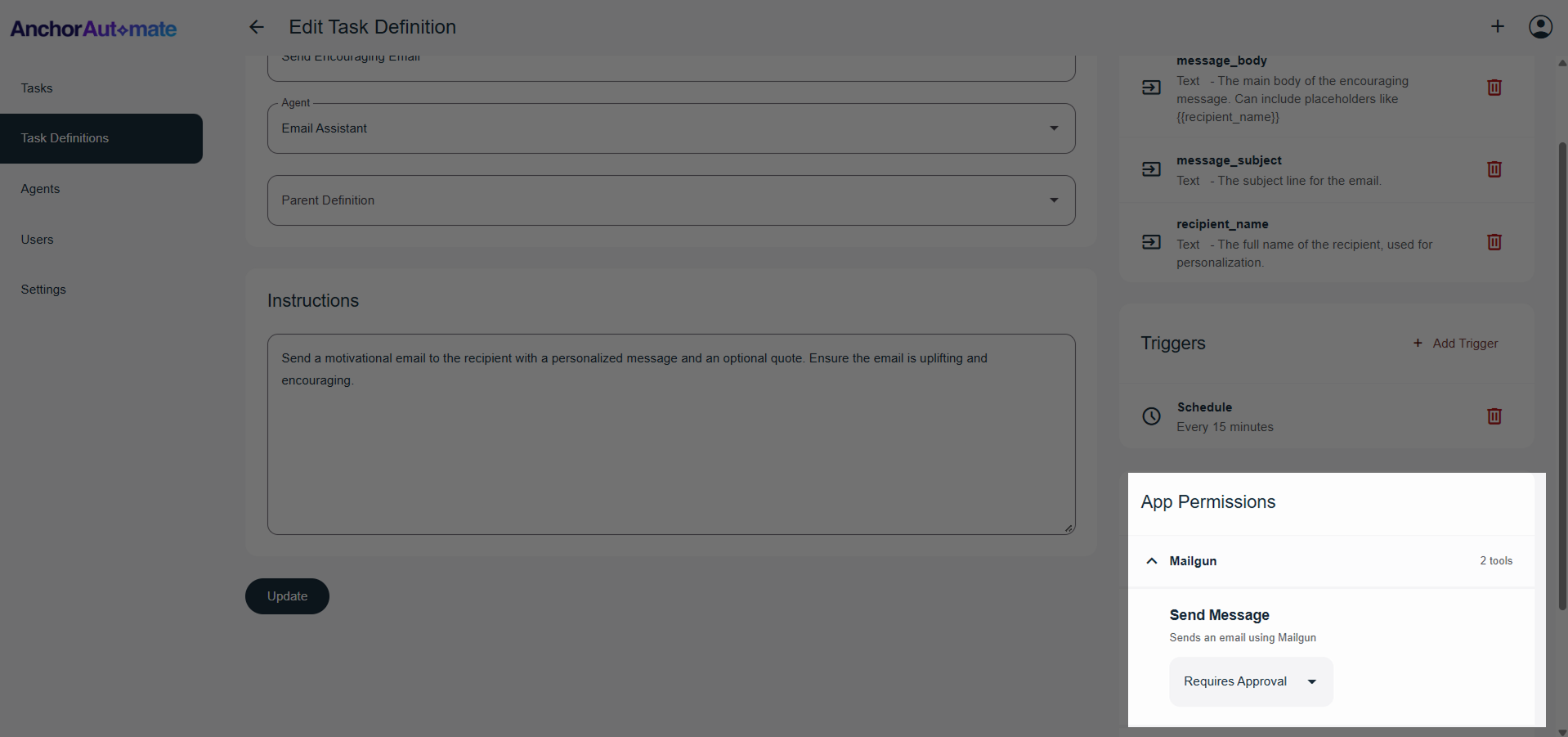
Here, you can see a list of all apps integrated with your task definition. You can configure permissions for each app individually or adjust multiple apps at once, giving you fine-grained control across all connected apps in a single task. Each app’s functionality can be configured separately, so you can tailor permissions based on the specific requirements of each task.
Permission Levels
Each app function can be set to one of three permission levels:
| Permission | Description | Use Case |
|---|---|---|
| Disabled | The app is not allowed to perform the action. | Prevent an app from performing a risky or sensitive operation, such as transferring funds or deleting critical data. |
| Approved | The app can perform the action automatically without human intervention. | Automate safe and trusted tasks, such as sending notifications, updating records, or executing standard workflows. |
| Requires Approval | The app will request human approval before performing the action. | Ensure oversight for important actions, like modifying or deleting records, before execution. |
⚠️ Default Recommendation: Use Requires Approval for new apps or tasks until you are confident in the app’s behavior. Only switch to Approved for trusted actions.
Best Practices for Controlling Apps
- Start Conservative – Begin with “Requires Approval” for new apps or actions to prevent unintended tasks.
- Evaluate Each Function – Some apps have multiple capabilities. Configure permissions individually rather than applying the same permission to all functions.
- Optimize Automation Gradually – Once you are confident that an app’s actions are safe and predictable, move the permission to Approved for faster automation.
- Disable Risky Functions – Explicitly disable any functions you do not want the AI to use to improve security and prevent errors.
Benefits of Detailed App Control
- Enhanced Security: Prevent apps from performing actions that could compromise data or systems.
- Customizable Automation: Control which tasks the AI can perform automatically for flexible workflow management.
- Human Oversight: Maintain visibility over important actions, ensuring that sensitive operations are approved before execution.
- Task-Specific Control: Permissions can be set per task definition, giving you fine-grained control tailored to each workflow.
- Multiple Apps Management: Configure multiple apps within the same task definition at once, saving time and ensuring consistent permissions.
Next Steps
While the full app control functionality is being developed:
